
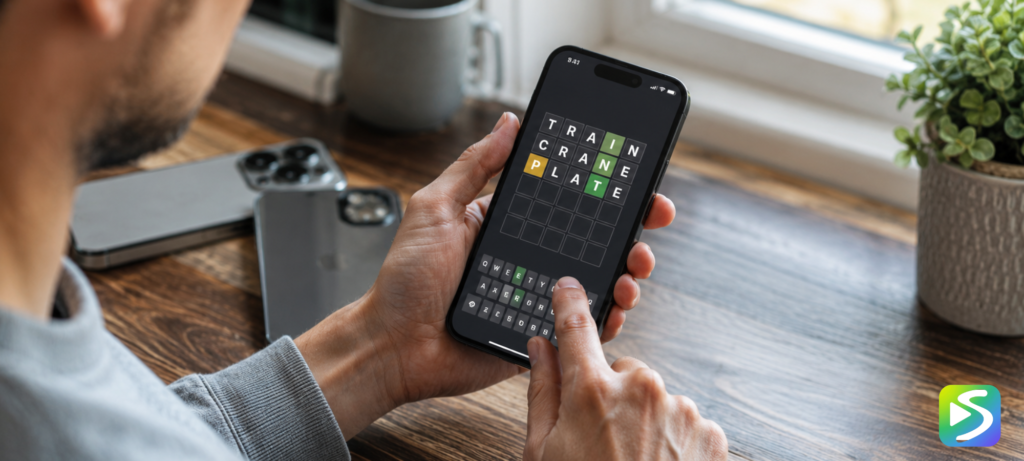
If you have been searching for a Septle app in the App Store or Google Play and coming up empty, there is a practical reason for that — Septle does not have a native app. What it does have is a browser-based game that works exceptionally well on mobile, and a Progressive Web App installation process that puts a Septle icon on your home screen with a full-screen experience that is genuinely indistinguishable from a native app in daily use. This guide covers exactly how to set that up on both iPhone and Android, and what the mobile Septle experience actually looks like.
Why Septle Does Not Have a Native App
Septle is built as a web application — it runs in your browser rather than as a standalone installed program. This is a deliberate design choice that has several advantages for players. Browser-based games require no installation, take up no storage space, update automatically without requiring you to approve an update, and work identically across every device with a modern browser. You do not lose your streak because you forgot to update the app.
The tradeoff is that Septle does not appear in app store searches. Players who are accustomed to finding new games through the App Store or Google Play miss it entirely unless they encounter the website directly. If you have been looking for the Septle app in app store searches and not finding it, this is why — the game lives at septle.org rather than in any app store.
How to Add Septle to Your iPhone Home Screen (PWA)
Adding Septle to your iPhone home screen as a Progressive Web App takes about thirty seconds and gives you a Septle icon that opens the game in a full-screen view without the Safari address bar. Here is the exact process:
Open Safari on your iPhone — it must be Safari, not Chrome or another browser, for the home screen installation to work on iOS. Navigate to septle.org. Once the page has fully loaded, tap the Share button at the bottom of the Safari toolbar — it looks like a box with an arrow pointing upward. In the share sheet that appears, scroll down and tap “Add to Home Screen.” You can change the name if you want — most players leave it as “Septle.” Tap “Add” in the top right corner.
The Septle icon will appear on your home screen immediately. Tapping it opens the game in a standalone full-screen view. Your progress, streak, and statistics are stored in the browser’s local storage and persist between sessions automatically.
How to Add Septle to Your Android Home Screen (PWA)
On Android, the process works through Chrome and is slightly more direct. Open Chrome and navigate to septle.org. Tap the three-dot menu in the top right corner of the Chrome toolbar. Tap “Add to Home screen” or “Install app” — the exact wording varies slightly between Android versions and Chrome versions. Confirm by tapping “Add” or “Install.”
The Septle icon will appear on your home screen. On newer Android devices, Chrome may show an install prompt automatically after you have visited the site a couple of times. Either way, once installed it opens in a standalone mode that looks and feels like a native app. Your game data saves automatically in Chrome’s storage. For players who use multiple devices, the Septle unlimited and practice mode guide explains how to use the streak export feature to carry your streak from one device to another without losing your history.
The Septle Mobile Experience
Septle’s mobile experience is genuinely well-designed. The grid and keyboard scale to different screen sizes without breaking the layout. The on-screen keyboard is responsive to touch input with no perceptible lag. The tile flip animations that reveal color feedback are clear and satisfying on small screens. The overall interface is clean enough that the game works well even on older smartphones with smaller displays.
One practical detail worth knowing: on very small phone screens, the full eight-row grid may require a small amount of scrolling during later guesses. This is not a significant issue in practice because most sessions end before guess eight, but it is worth being aware of if you are playing on an unusually small or low-resolution screen.
Mobile is also where most of Septle’s traffic comes from. According to the site’s data, the majority of daily sessions happen on phones rather than desktops. The game was built with mobile in mind, and the PWA installation process is the recommended way to play regularly on a phone. If you prefer the larger keyboard and screen of a desktop, the Septle game online guide covers the desktop browser experience in detail.
Notifications and Daily Reminders
One thing the Septle PWA does not do is send push notifications. The game has no notification system — it does not remind you to play, does not alert you when a new puzzle is live, and does not send any messages to your device. This is consistent with the game’s broader design philosophy of relying on intrinsic motivation — habit and streak maintenance — rather than external prompts to bring players back.
If you want a daily reminder to play Septle, the most effective approach is to set your own calendar alert or phone reminder at whatever time you prefer to play. Many regular players attach their Septle session to an existing morning routine trigger rather than using any notification system.
Data Storage and Streak Safety on Mobile
Septle stores your streak, stats, and current game state in your browser’s local storage. On both iPhone and Android, this data persists as long as you do not clear your browser data or delete the app. A few practical points worth knowing:
On iPhone, if you installed the PWA through Safari and then clear Safari’s website data in Settings, you will lose your streak. To avoid this, use the in-game streak export feature before clearing any browser data. On Android, clearing Chrome’s cache and data will also clear your Septle progress. The export feature is the safest way to protect a long streak.
If your phone is replaced or reset, your streak will not automatically transfer. Export your streak before any factory reset or device change. The import process on the new device takes about thirty seconds using the code generated by the export.
Frequently Asked Questions
Is there a Septle app on the App Store or Google Play?
No. Septle does not have a native app in any app store. The game is a browser-based Progressive Web App available at septle.org. You can add it to your iPhone or Android home screen for a full-screen app-like experience using the process described above.
Is the Septle PWA the same as the website?
Yes. The PWA is the same game as the website — it uses the same code, the same word list, and the same puzzle schedule. The only difference is that when installed as a PWA, it opens in a standalone full-screen mode without the browser address bar, which makes the experience feel more like a native app.
Will I lose my Septle streak if I uninstall the PWA?
If you remove the PWA icon from your home screen on iPhone, you may lose your streak because iOS may clear the associated website data. To be safe, use the streak export feature before removing the icon and re-import after reinstalling. On Android, removing the app icon from the home screen does not necessarily clear the data, but exporting first is good practice.
Can I play Septle on a tablet?
Yes. Septle works well on tablets in any modern browser. The larger screen gives you more comfortable grid visibility and a larger keyboard. You can also install it as a PWA on iPad through Safari using the same process as iPhone.
Does Septle work offline on mobile?
Septle requires an internet connection to load and validate guesses. It does not have full offline functionality. However, once the page is loaded, the session can continue without a continuous internet connection in most cases. A fresh page load at the start of each session requires connectivity.